
Download ScrapBook Plug in – free, secure Firefox extension for saving web pages
Overview
ScrapBook Plug in for Firefox is a lightweight yet powerful extension that transforms the way you capture, store, and revisit online content. Whether you need to archive an entire website for offline research, keep a quick note from a news article, or preserve a ticket confirmation page for future reference, ScrapBook offers an intuitive workflow that mimics the familiar bookmark system while adding rich annotation capabilities. The plug‑in captures full page snapshots, selected snippets, or whole site structures, storing them locally in an organized hierarchy that you can browse, search, and edit at any time.
A built‑in highlighter and eraser let you mark important passages, add comments, or redact sensitive information without leaving the browser. Even if you already use a desktop search tool like Google Desktop, ScrapBook’s internal search engine provides instant, keyword‑based retrieval of saved content, making it an indispensable companion for students, researchers, and power users who rely on accurate web references. While occasional quirks appear with pages that contain dynamic or proprietary elements, the extension’s recent updates have reduced capture delays and improved sidebar handling, ensuring a smoother experience when dragging items to the toolbar button.
Overall, ScrapBook Plug in delivers a secure, free, and regularly updated solution for anyone who wants to keep the web at their fingertips, even when the internet is out of reach.
Key Features
- Full‑page capture: Save an entire web page exactly as it appears, including images, CSS, and scripts, for offline viewing.
- Snippet saver: Highlight a portion of a page and store just that text or image, perfect for research notes.
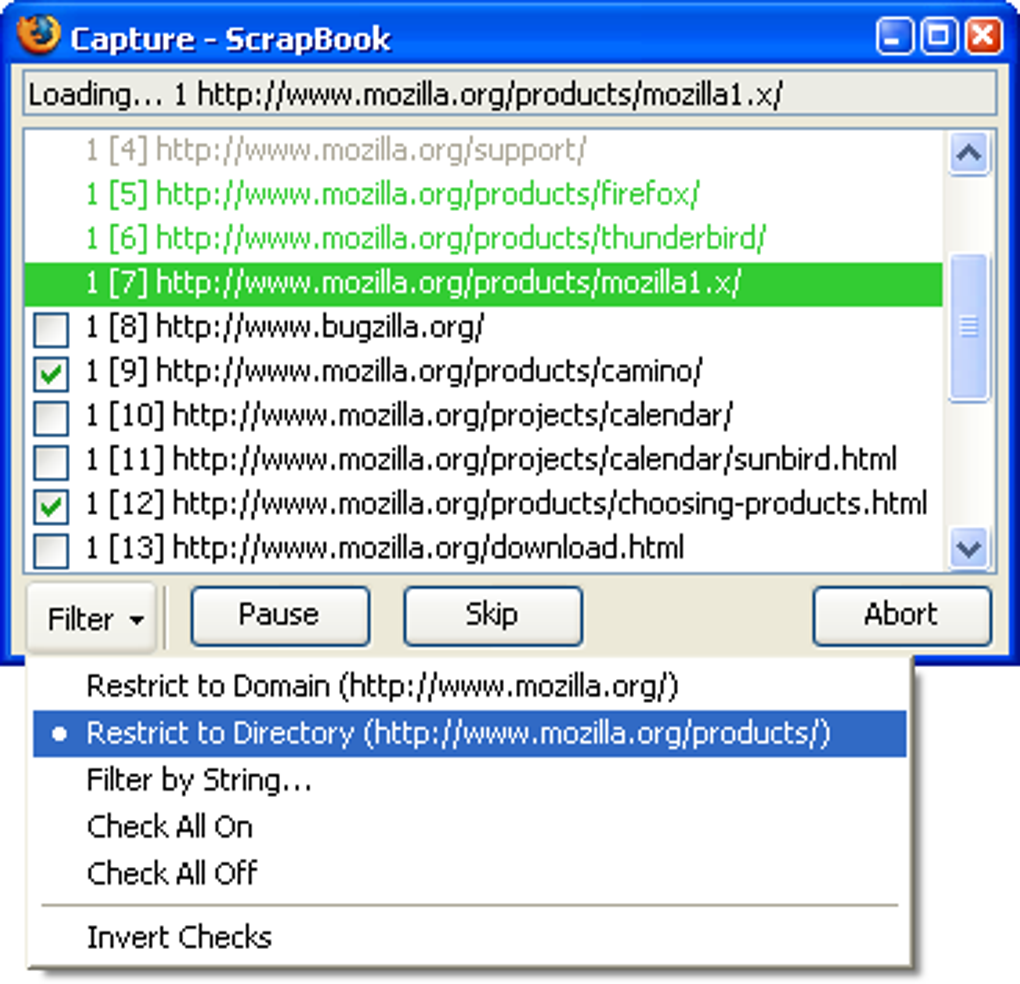
- Website archiving: Clone whole sites with a single click, preserving navigation structure for future reference.
- In‑built highlighter & eraser: Mark important sections, add comments, or redact confidential data directly on saved pages.
- Search within saved content: Instant keyword search across all captured pages without needing external indexing tools.
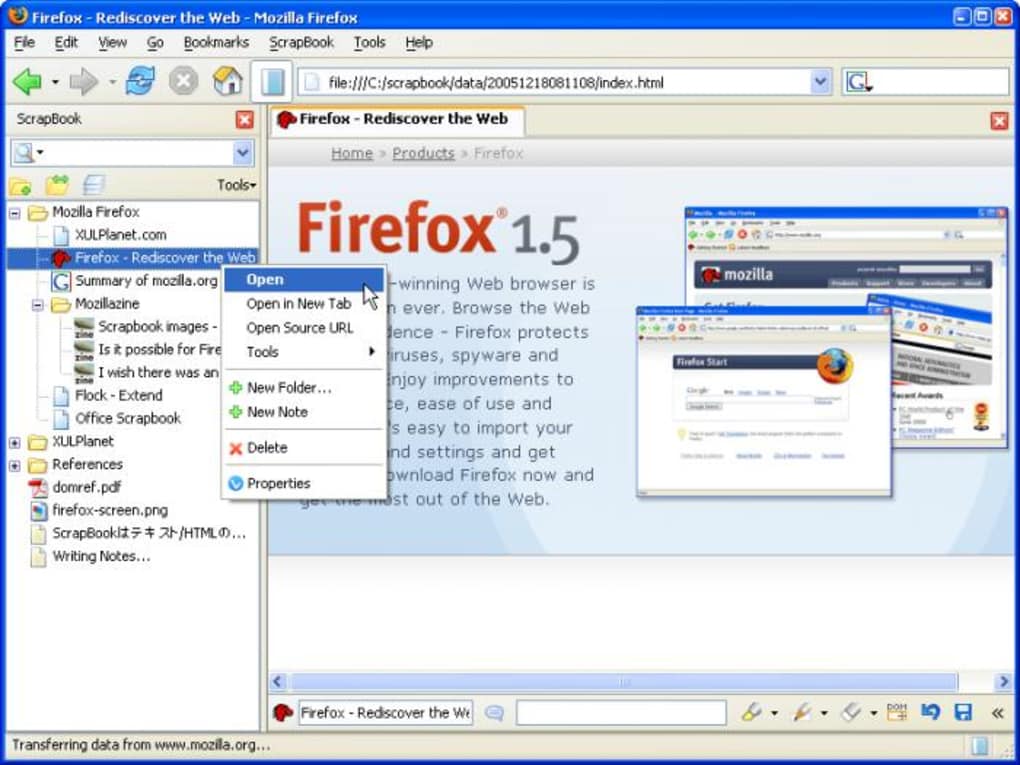
- Bookmark‑style organization: Create folders, sub‑folders, and tags to keep saved material tidy and easy to locate.
- Secure local storage: All data is saved on your device, ensuring privacy and control over your archives.
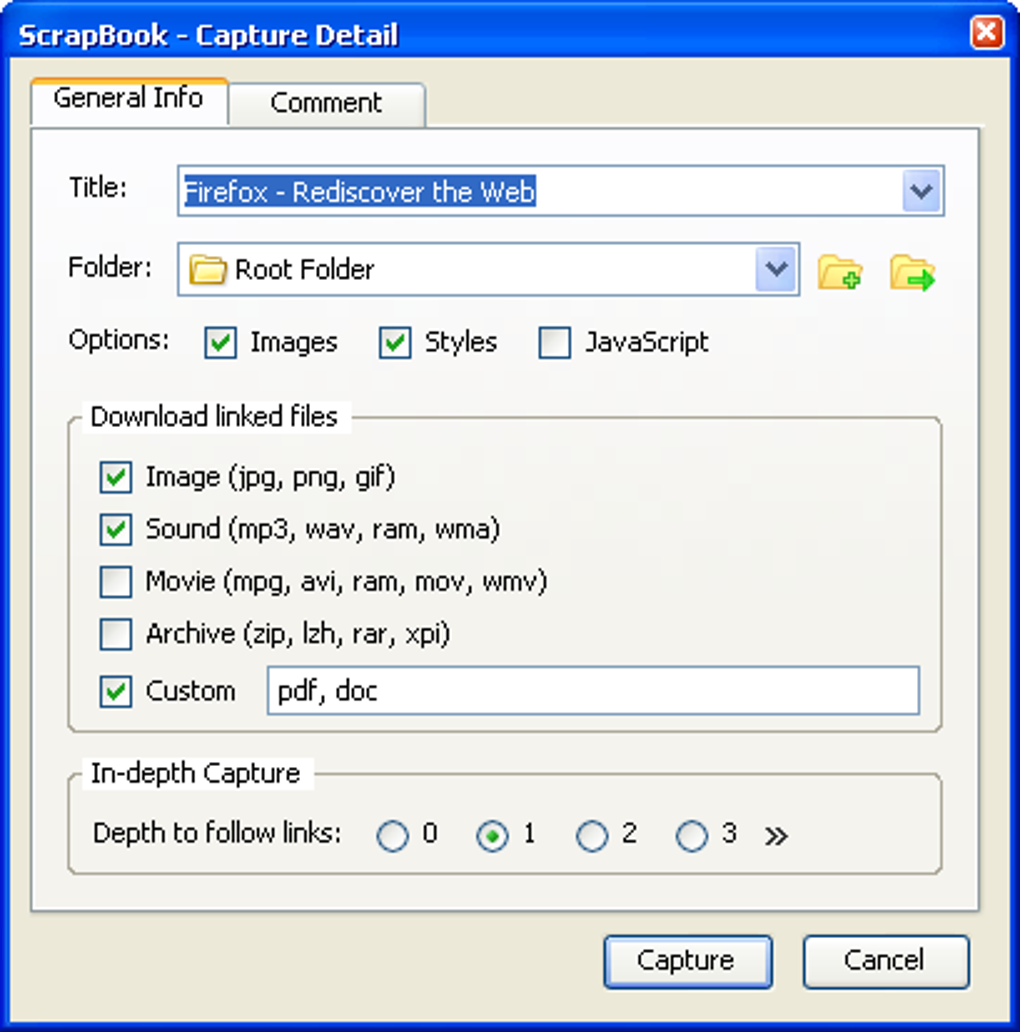
- Customizable capture delay: New settings let you adjust the wait time before a deep capture starts, reducing accidental saves.
- Responsive sidebar: The sidebar now opens after a brief drag‑over, preventing accidental pop‑ups while maintaining quick access.
- Free and open source: No hidden fees, no subscription, and regular community‑driven updates keep the tool reliable.
Installation & Usage Instructions
Getting started with ScrapBook Plug in is straightforward, even for users who are new to Firefox extensions. Follow these steps to download, install, and begin archiving your favorite web content:
- Open Firefox Add‑ons Marketplace: Click the menu button (three horizontal lines) → Add‑ons and Themes → search for “ScrapBook Plug in”.
- Download & Install: Press the Add to Firefox button. Firefox will ask for permission to access your browsing data – this is required for page capture and storage. Click Add and then Okay to complete the installation.
- Initial Setup: After installation, a small toolbar icon appears near the address bar. Click it once to open the configuration panel. Here you can set your default capture delay (default 5 seconds), choose a storage folder, and enable or disable the highlighter by default.
- Saving a Full Page: Navigate to the page you wish to archive. Click the ScrapBook icon, then select Save Page. The extension will begin capturing resources; a progress bar appears in the sidebar. Once complete, the page appears in your chosen folder.
- Saving a Snippet: Highlight the text or image you need, right‑click the selection, and choose ScrapBook → Save Selection. The snippet is stored as a separate entry, automatically tagged with the source URL.
- Annotating Saved Content: Open any saved page from the sidebar, click the highlighter tool, and apply colors or notes. To erase, switch to the eraser tool and remove unwanted marks.
- Searching Your Archive: Use the search field at the top of the sidebar. Type keywords, and ScrapBook instantly filters matching pages, displaying excerpts for quick verification.
- Export & Backup: Periodically export your ScrapBook folder (right‑click the root folder → Export) to a ZIP file. This ensures your data remains safe if you reinstall Firefox or change computers.
The user interface is designed to be non‑intrusive; the sidebar stays hidden until you need it, and the capture delay prevents accidental saves while scrolling. If you encounter pages that don’t render correctly after capture (often due to heavy JavaScript), try the “Simplified Capture” mode in settings, which strips dynamic scripts and preserves static content.
Compatibility, Pros & Cons
ScrapBook Plug in is built specifically for Mozilla Firefox on desktop platforms. It works seamlessly on Windows 10/11, macOS 10.15+ (Catalina and later), and Linux distributions that support the latest Firefox release. Mobile versions of Firefox do not currently support this extension, so the tool is best suited for laptops and desktops where offline access to saved pages is most valuable.
Pros
- Free, open‑source, and regularly updated.
- Captures complete pages, snippets, and entire sites.
- Built‑in annotation tools eliminate the need for third‑party editors.
- Local storage guarantees privacy and control.
- Searchable archive speeds up research workflows.
- Customizable capture delay reduces accidental saves.
- Responsive sidebar that opens only when needed.
Cons
- Dynamic pages with complex scripts may not render perfectly after capture.
- Only compatible with desktop Firefox; no Android or iOS support.
- Initial setup may feel technical for non‑tech‑savvy users.
- Large website archives can consume significant disk space if not managed.
FAQ
Can I use ScrapBook Plug in on a Mac?
Yes. The extension runs on macOS versions that support the latest Firefox release (10.15 Catalina or newer). Installation steps are identical to Windows.
Is my saved data stored locally or in the cloud?
All captures are saved locally on your computer. This ensures privacy and gives you full control over backups and exports.
How do I export my archived pages?
Right‑click the root ScrapBook folder in the sidebar and select “Export”. The extension creates a ZIP file containing all saved pages, which you can import on another device.
Why does a saved page look different from the original?
Pages that rely heavily on dynamic JavaScript, embedded videos, or proprietary widgets may not render perfectly after capture. Using the “Simplified Capture” mode can improve results for such sites.
Is there a limit to how many pages I can save?
There is no built‑in limit; storage is only constrained by your hard drive capacity. Organizing pages into folders and periodically cleaning up old entries helps manage space.
Conclusion & Call to Action
ScrapBook Plug in stands out as a free, secure, and feature‑rich Firefox extension that brings true offline web archiving to the desktop. Its ability to capture full pages, snippets, and entire sites, combined with built‑in annotation tools and a searchable library, makes it an essential productivity add‑on for anyone who regularly references online material. While it lacks mobile support and may stumble on highly dynamic pages, the recent improvements to capture delay and sidebar behavior have significantly enhanced usability. If you need a reliable way to preserve flight tickets, research articles, or whole reference sites without relying on third‑party cloud services, ScrapBook is the answer.
Download ScrapBook Plug in now and start building your personal offline web library today. Enjoy a secure, ad‑free experience and keep the web at your fingertips—anytime, anywhere.







